Easy Heading Macro 2.2.0 adds two focused administration modules: Bulk Add Macros and Bulk Remove Macros. They let a Confluence administrator roll out Easy Heading Macro across existing content—or remove it—without opening and editing every page individually.
This guide explains the built-in workflow and when the more general-purpose Easy Bulk Tools app is a better fit.
Before you begin
The bulk tools update Confluence pages, so start with a small, representative space before running them across a larger scope.
Before scanning:
- Confirm that you have Confluence administration access.
- Decide which spaces should be included.
- Make sure the user selected under Run as user can view and edit every page in those spaces.
- Review the configured default parameters, because Bulk Add inserts Easy Heading Macro using those defaults.
The selected run-as user will be recorded as the last user to update the affected pages.
Bulk add Easy Heading Macro
Use Bulk Add when existing pages should receive Easy Heading Macro with your configured default parameters.
1. Open the Bulk Add module
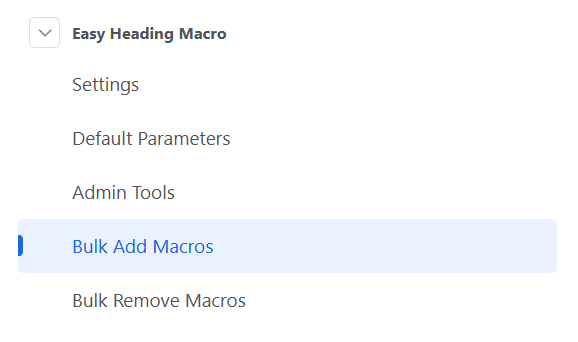
Open the Easy Heading Macro administration area in Confluence, then select Bulk Add Macros from the navigation.
2. Choose the run-as user
Select one of the available identities:
- Easy Heading Macro — page changes are performed as the app user.
- Current User — page changes are performed as the administrator running the operation.
Whichever identity you select must have permission to view and edit the pages in scope.
3. Select the spaces to scan
Choose the required space type and, if needed, select specific spaces. If no individual spaces are selected, the tool scans all spaces matching the selected space type.
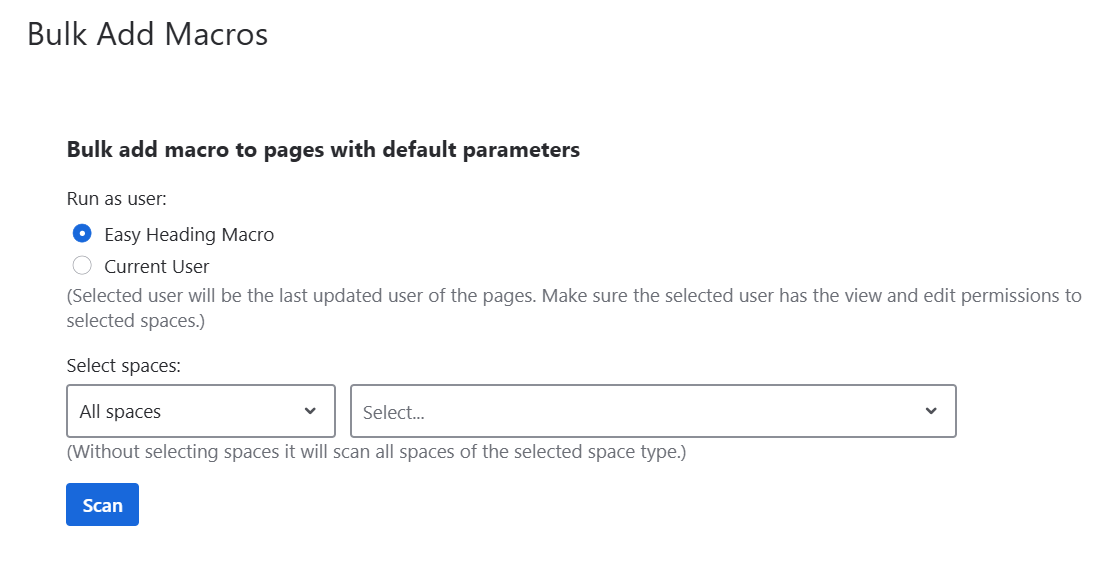
For the first run, selecting one test space makes it easier to review the result before expanding the operation.
4. Scan for eligible pages
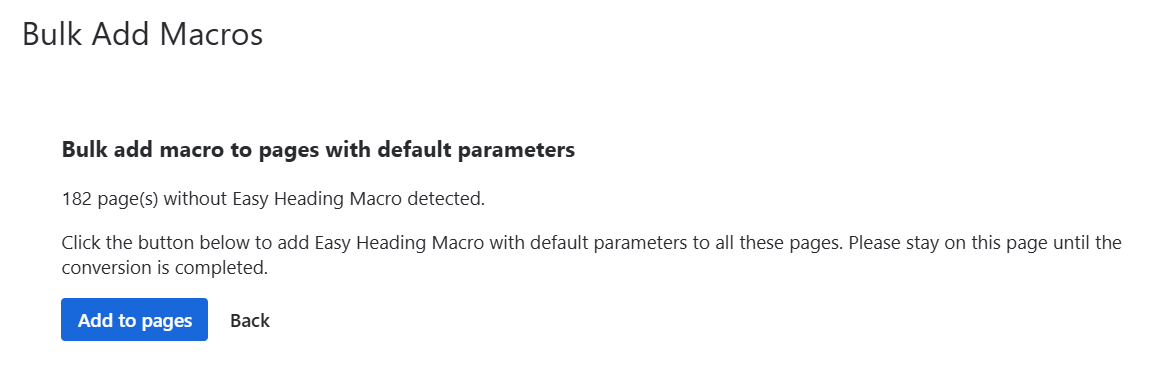
Select Scan. Easy Heading Macro checks the chosen scope and reports how many pages do not currently contain the macro.
The scan does not modify pages. Use the reported count to confirm that the scope looks reasonable before continuing.
5. Confirm the update
Select Add to pages to insert Easy Heading Macro with its default parameters on all detected pages.
Keep the browser on this page until the operation finishes. Review the completion result before running the same operation against additional spaces.
Bulk remove Easy Heading Macro
Use Bulk Remove when Easy Heading Macro should be removed from a set of existing pages.
- Open the Easy Heading Macro administration area and select Bulk Remove Macros.
- Choose the run-as user.
- Select the required spaces.
- Run the scan to identify pages containing Easy Heading Macro.
- Review the number of detected pages carefully.
- Confirm the removal and remain on the page until processing completes.
Because removal affects every detected page in the selected scope, test the operation in one space first and verify a sample of pages afterward.
Which built-in tool should you use?
- Use Bulk Add Macros when you want to apply Easy Heading Macro consistently to existing pages.
- Use Bulk Remove Macros when the macro is no longer required in selected spaces.
- Continue editing an individual page when only one or two pages need to change or when each page requires different macro parameters.
When to use Easy Bulk Tools
The modules added in Easy Heading Macro 2.2.0 are deliberately focused: they add or remove Easy Heading Macro using a straightforward scan-and-confirm workflow.
Easy Bulk Tools is designed for broader Confluence administration. It can bulk add, replace, or remove different macros across large groups of pages without opening each page manually.
It is a better choice when you need to:
- Standardize macro usage across many pages or spaces.
- Replace one macro with another.
- Remove deprecated or unwanted macros.
- Add common Confluence macros such as panels, status blocks, or reporting elements.
- Run longer operations through a server-side task queue.
- Leave the app page and return later to review progress.
- Keep task history and detailed operation logs.
See the Easy Bulk Tools documentation for feature guides and examples, or view Easy Bulk Tools on Atlassian Marketplace.
Need help?
If the scan result is unexpected or an operation does not complete, stop before expanding it to more spaces and contact support with the selected scope and the result shown on screen.