Since 2.2.0, Easy Heading Macro has included the focused Bulk Add Macros and Bulk Remove Macros admin tools. Those are the right choice when you only need to scan whole spaces for Easy Heading Macro.
Easy Bulk Tools now has a new Workbench. You search first, select the pages you want, then add or remove Easy Heading Macro (and other macros) without staying on the page until the job finishes.
This guide is the Workbench version of How to bulk add or remove Easy Heading Macro across Confluence spaces.
Before you begin
Workbench jobs update Confluence pages. Start with one test space.
- Install Easy Bulk Tools on the same Cloud site as Easy Heading Macro.
- You need edit permission on the pages you select. Bulk edits (macros and labels) default to all users; a Confluence administrator can restrict that on What’s New & Settings.
- This release supports pages and blog posts. Live docs are not in Search yet.
- Easy Heading Macro is a registered element. You set every parameter in the same kind of form you use when editing the macro on a page (sidebar, heading links, related links, numbering, export). You do not paste storage format. Pages that already have the macro are skipped.
Bulk add Easy Heading Macro
Use this when existing pages should get a floating table of contents.
1. Open the Workbench
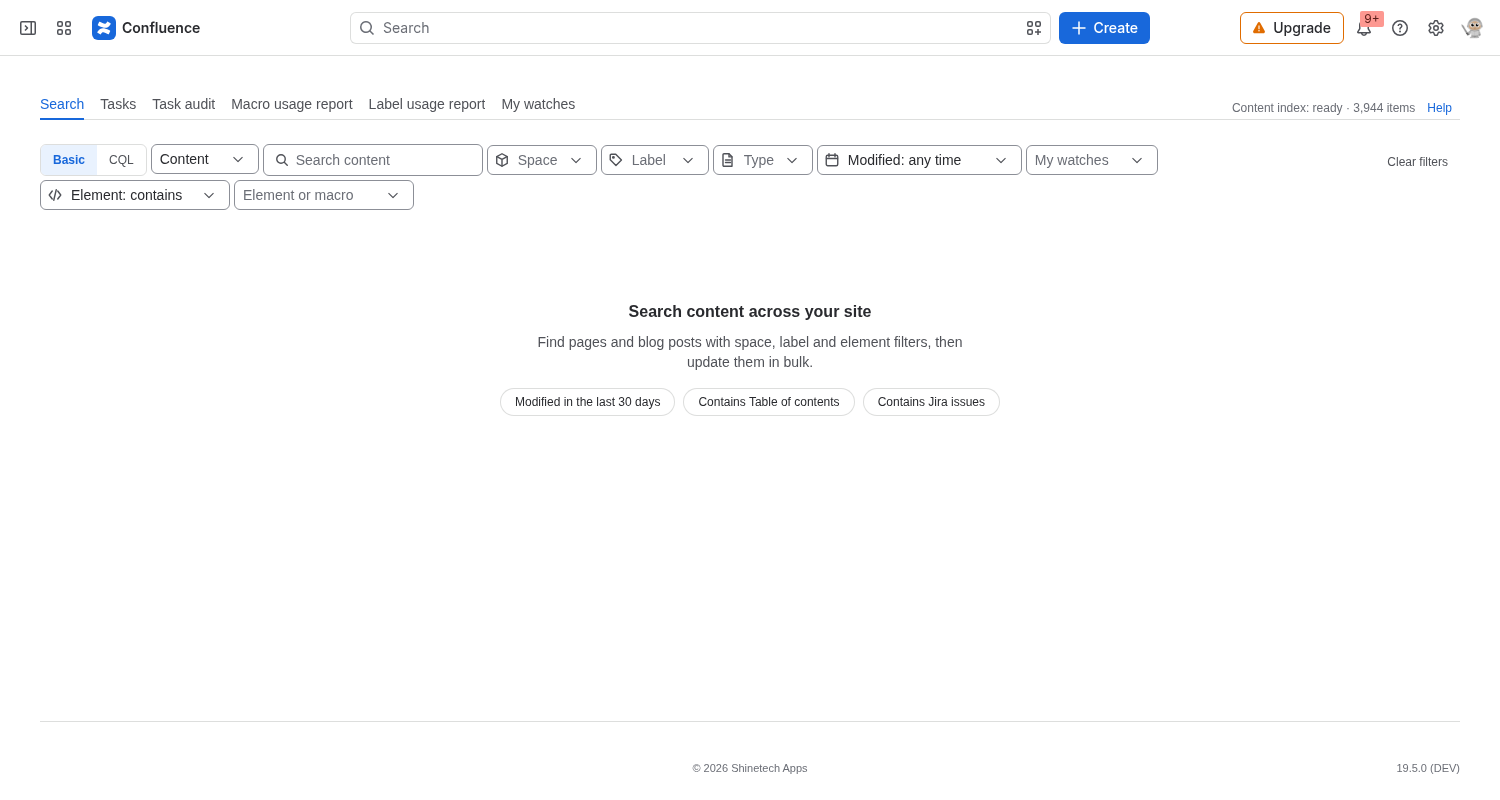
In Confluence, open Apps, then Easy Bulk Tools. You land on the Search tab.
2. Find the pages
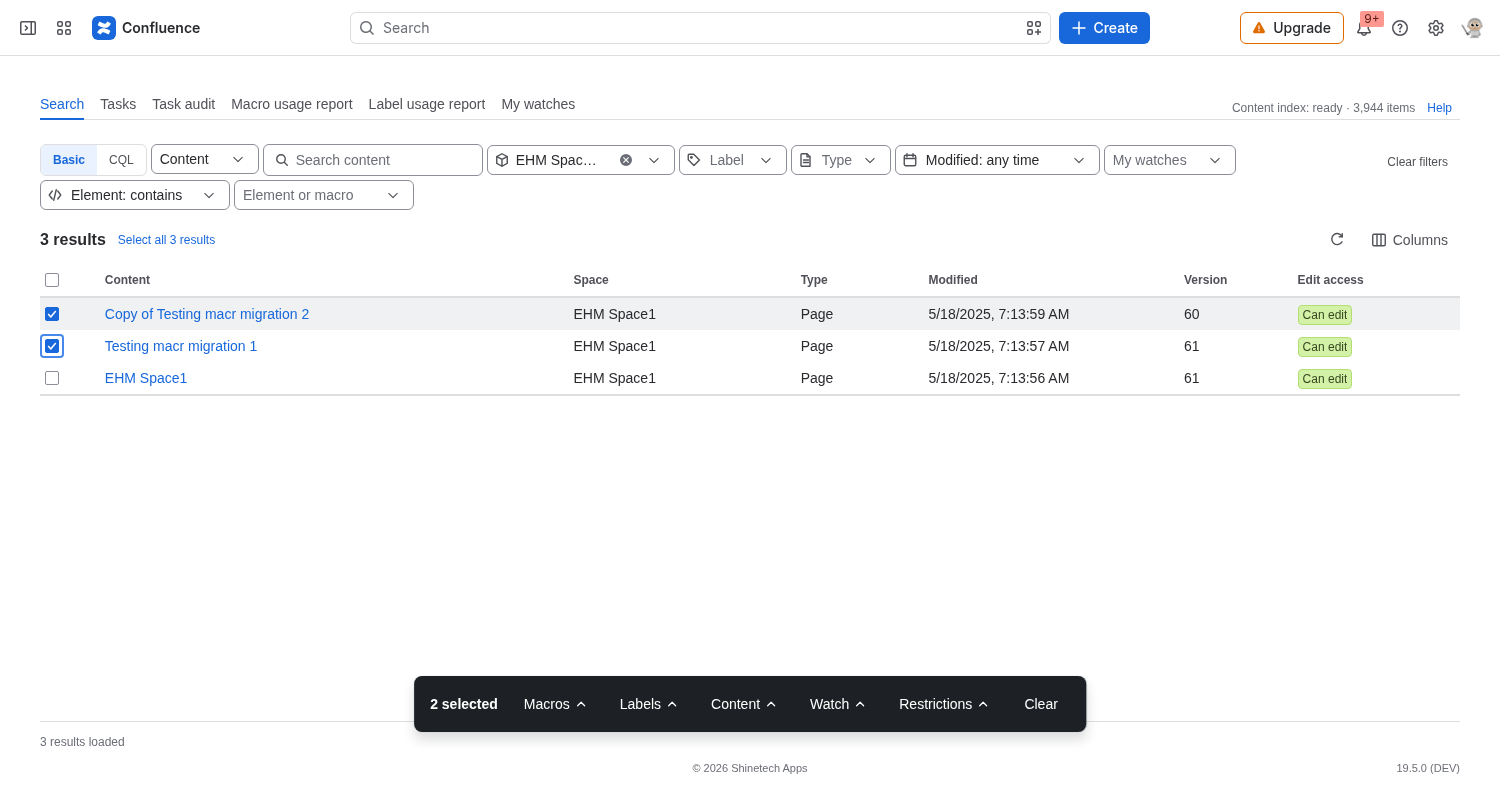
Set type to pages (or both). Pick the spaces you want. For a first run, choose one test space.
To skip pages that already have the macro, set Element to does not contain Easy Heading Macro (easy-heading).
Select Search. Tick the pages you want, or use the full matching set.
3. Add Easy Heading Macro
Open the macros menu and choose Add macro.
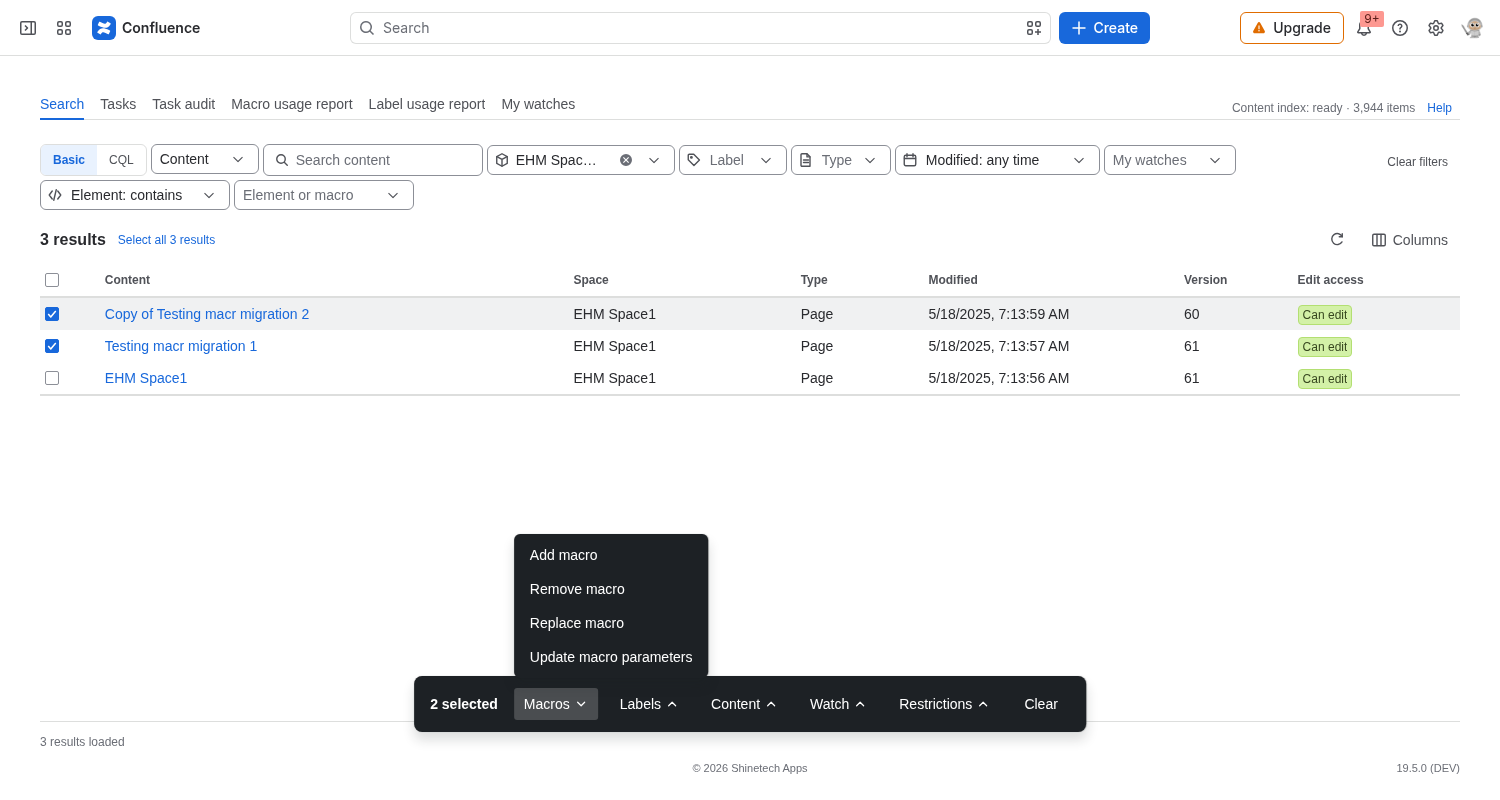
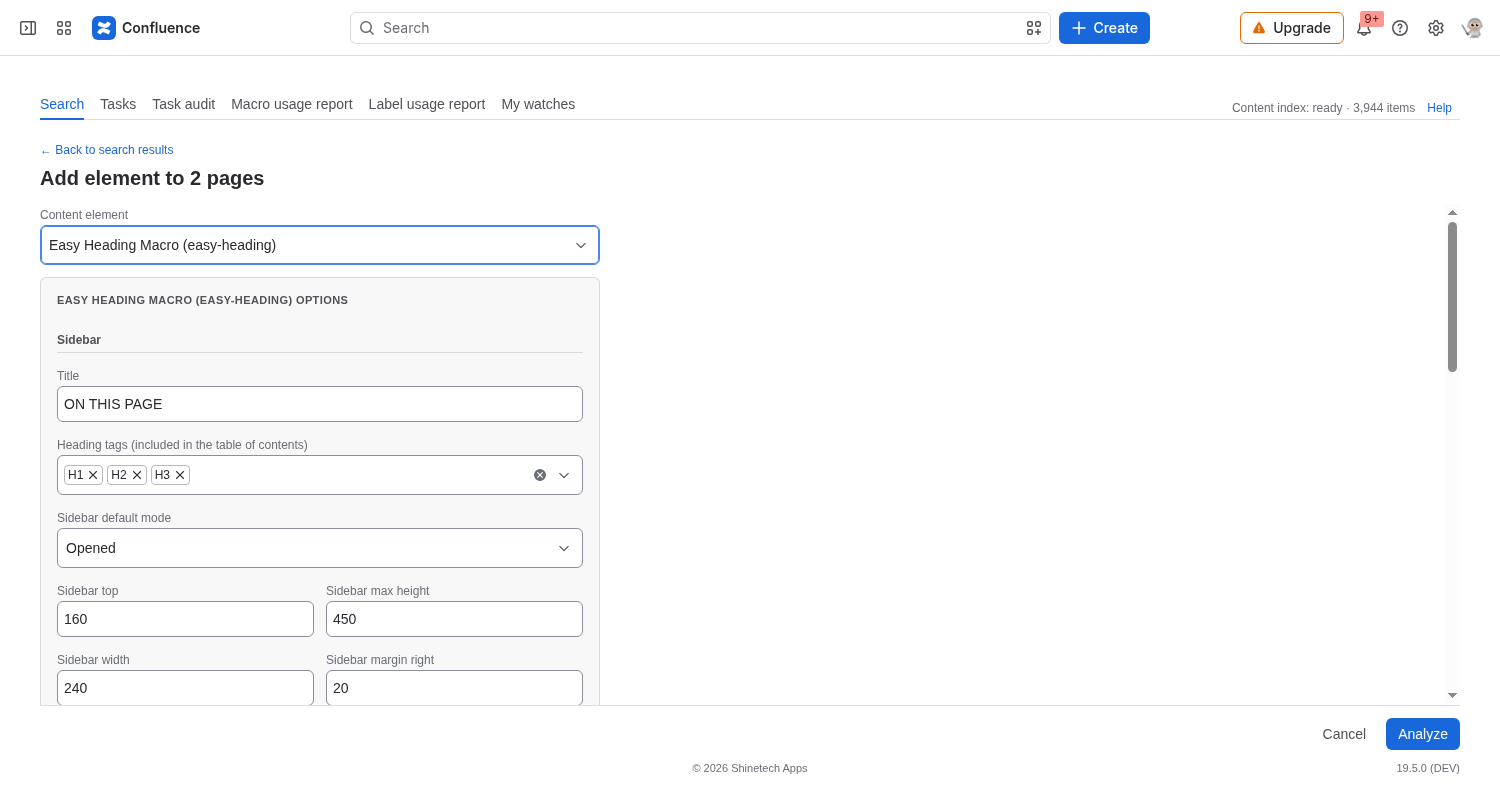
Pick Easy Heading Macro (easy-heading). The Workbench opens a parameter form that matches the Easy Heading Macro edit dialog: Sidebar, Heading links, Related links, Heading numbering, and Export. Leave the defaults, or change sidebar title, heading tags, and the other options there.
Choose where to insert: Top of page or Bottom of page.
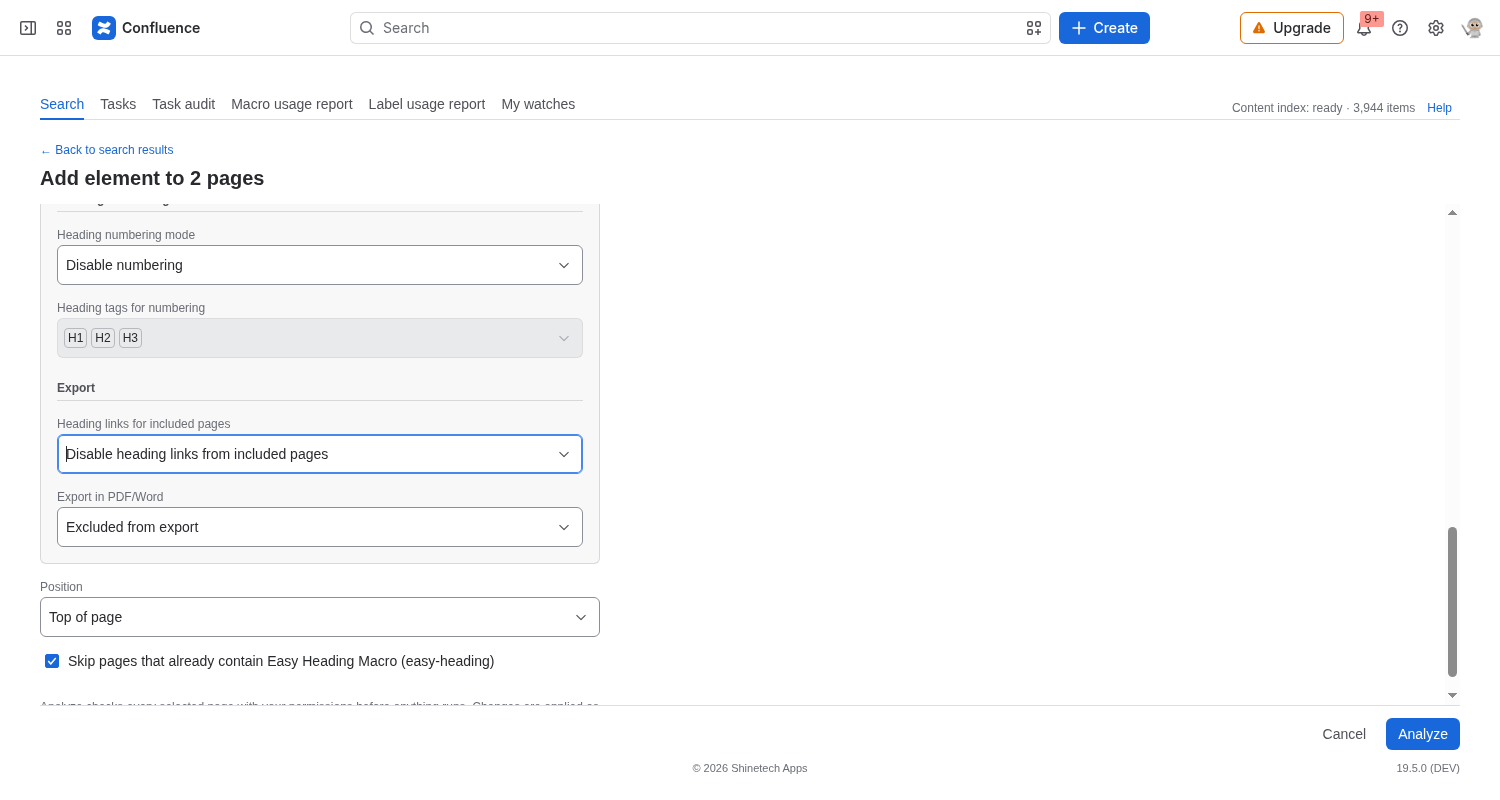
4. Analyze, then Run
Analyze shows which pages will receive the macro and which will be skipped because they already have it. Run starts a background job. Leave the page if you want; open Tasks to check progress.
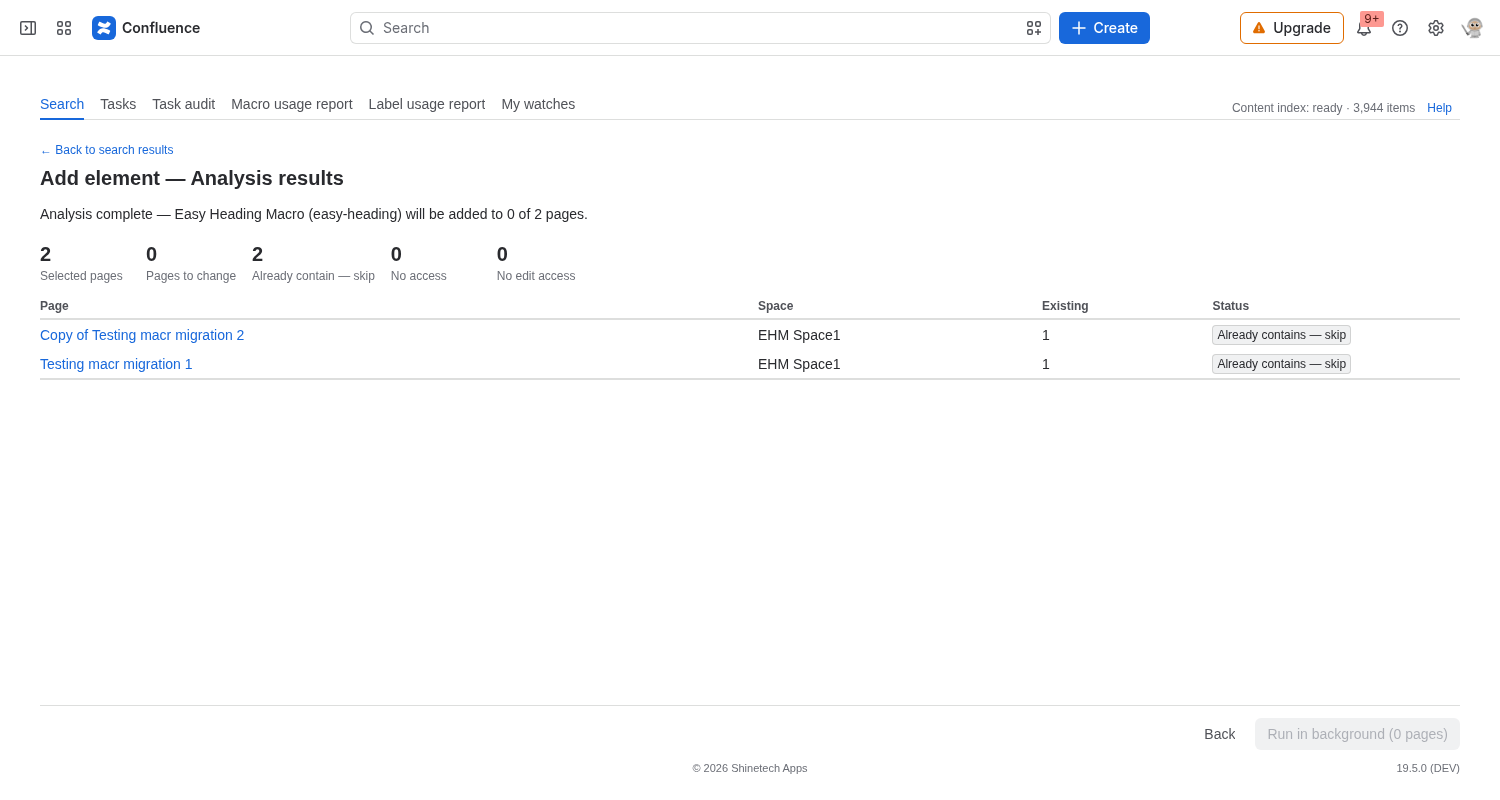
Bulk remove Easy Heading Macro
- On Search, pick the spaces and set Element to contains Easy Heading Macro (easy-heading).
- Search and select the pages.
- Choose Remove macro, then Easy Heading Macro (easy-heading).
- Analyze, then Run. Watch the job on Tasks.
Test the removal in one space first. Easy Heading Macro has no inner page body to keep, so Remove takes the macro off the page.
What else the Workbench can do
The same Search result can feed other jobs:
- Update macro parameters on Easy Heading Macro already on the page (sidebar, heading levels, numbering) using the same form.
- Replace macro, for example native Table of contents (
toc) with Easy Heading Macro. - Add, remove, or replace labels.
- Watch or unwatch selected pages and blog posts, or manage them on My watches. These actions apply only to your own watches.
- Add, remove, replace, or clear View and Edit restrictions for people and groups, the same way Confluence page restrictions work. Analyze skips pages you cannot restrict.
- Move, copy, or archive pages, or send them to the space trash.
See the Easy Bulk Tools documentation for the full Workbench guides, or view Easy Bulk Tools on Atlassian Marketplace.
Which tool should you use?
- Use the built-in Easy Heading Macro bulk tools when you want a space-wide scan that only adds or removes Easy Heading Macro. The walkthrough is here: How to bulk add or remove Easy Heading Macro across Confluence spaces.
- Use the Easy Bulk Tools Workbench when you want to pick exact pages, combine filters, change parameters, replace another macro, or leave a long job running.
- Edit a single page when only one or two pages need to change.
Need help?
If Analyze looks wrong, stop before you Run against more spaces and contact support with the filters you used and the preview on screen.