We recently relaunched Easy Bulk Tools for Confluence Cloud with a new Workbench. This is not a small skin on the old screens — the app was rebuilt so Confluence admins can find the right pages first, then run bulk jobs without babysitting the browser.
If you installed Easy Bulk Tools earlier and stopped opening it, this update is for you. Please give the new UI one fresh look before you decide whether it still fits your site.
What changed
Previously, bulk work felt tied to a narrower set of flows. The Workbench starts on Search: filter by space, text, labels, and elements (including macros), select the pages or blog posts you need, then choose an action.
Typical admin jobs now sit in one place:
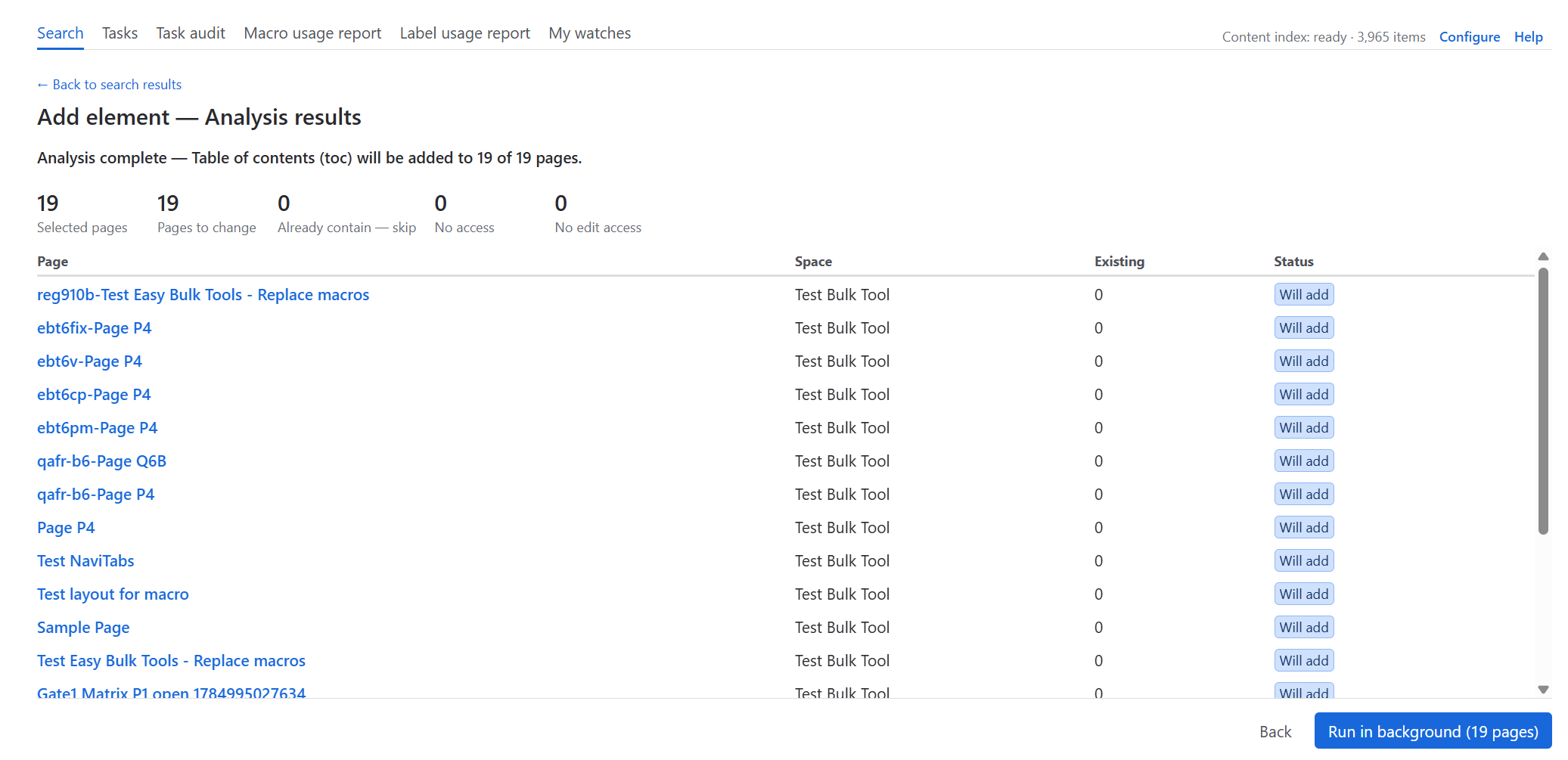
- Macros — add, remove, replace, or update parameters (Analyze first, then Run in the background)
- Labels — add, remove, or replace, including rename/merge from the label usage report
- Content — move, copy, archive, or delete selected pages
- Watches — add or remove your own page/blog watches in bulk
- Restrictions — adjust View/Edit restrictions for people and groups on selected pages (Analyze skips pages you cannot change)
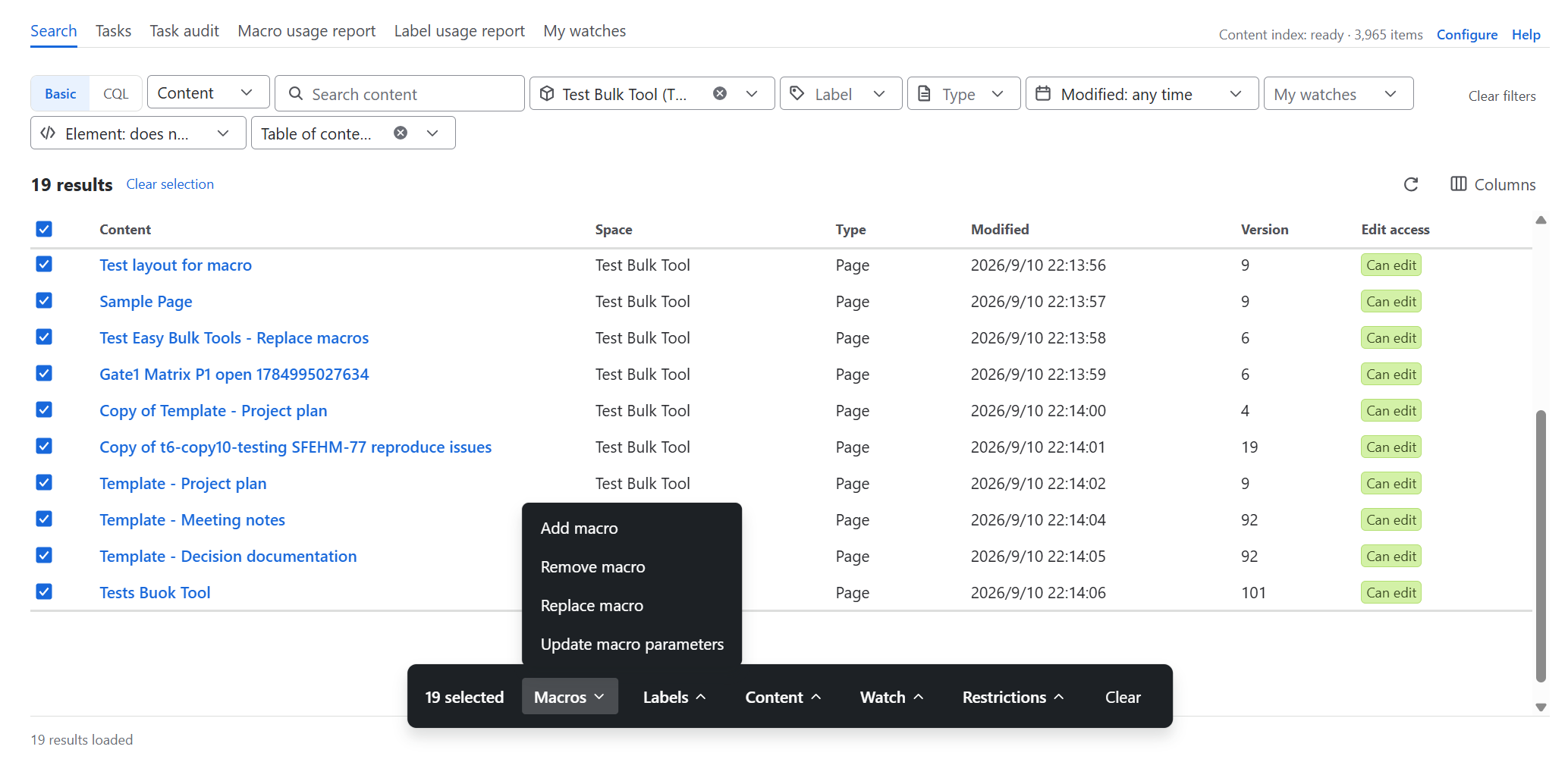
Jobs run in the background. You can leave the page and check progress under Tasks; administrators also have a task audit trail.
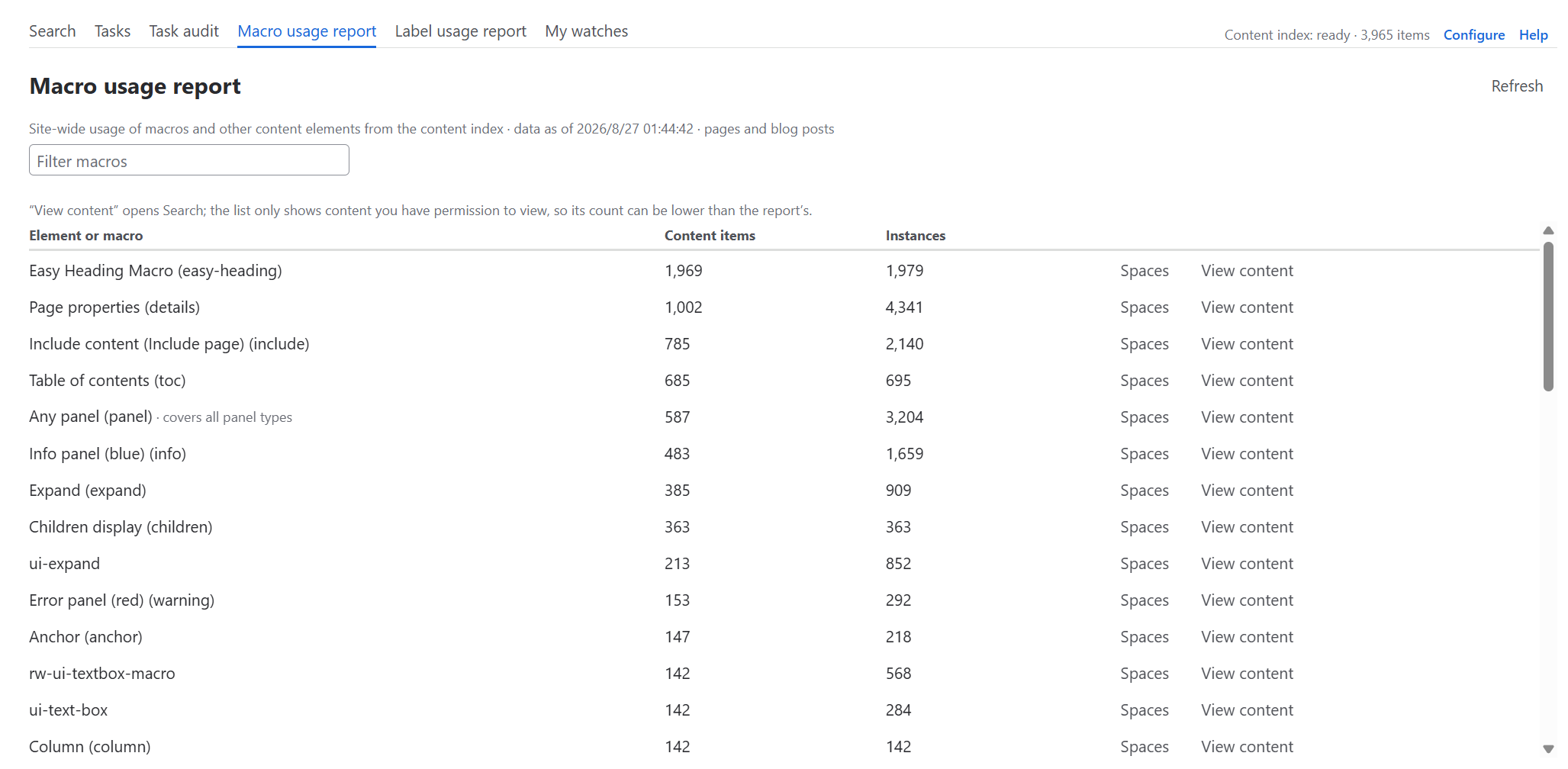
See what macros are already on the site
The Macro usage report lists macros and other elements from the content index — how many pages, how many instances, and which spaces. Filter by name, then use View content to jump into Search for those pages.
A short path to try it again
- In Confluence, open Apps → Easy Bulk Tools.
- On Search, pick a small test space and run Search.
- Select a few pages, open the macros (or labels) menu, and use Analyze before Run.
- Open Tasks if you want to watch the job finish.
Start small. Workbench jobs change live Confluence content.
Example: bulk Easy Heading Macro
The same Workbench flow works well when you roll out or clean up Easy Heading Macro — add it to pages that need a floating TOC, remove it, or replace the native Table of contents (toc) macro. We published a focused walkthrough here: How to bulk add or remove Easy Heading Macro in the Easy Bulk Tools Workbench.
Notes before you run large jobs
- You need edit permission on the pages you select. A Confluence administrator can restrict who may run bulk edits on What’s New & Settings.
- Search currently covers pages and blog posts. Live docs are not in Search yet.
- Prefer one test space before you scale to the whole site.
Links
Also from Shinetech Apps
Looking for a floating TOC and heading navigation on Confluence pages? See Easy Heading Macro, or start from the Easy Heading guides on the Updates list.
Work with people outside your Jira site? Collabound lets you share selected issues with customers or vendors in a dedicated portal — without giving them a full Jira seat.